Headless Debian/Xfce container with VNC/noVNC and Firefox browser
accetto/debian-vnc-xfce-firefox-g3
Docker Hub - Git Hub - Dockerfile - Docker Readme - Changelog - Project Readme

- Headless Debian/Xfce container with VNC/noVNC and Firefox browser
- accetto/debian-vnc-xfce-firefox-g3
- Using headless containers
- Container user account
- Running containers in background (detached)
- Running containers in foreground (interactively)
- Firefox multi-process
- Firefox preferences and the plus features
- Startup options and help
- Issues, Wiki and Discussions
- Credits
- Diagrams
Warning about the images with Firefox
There is no single-process Firefox image in this repository any more and the multi-process mode is always enabled. Be aware, that the multi-process mode requires larger shared memory (/dev/shm). At least 256MB is recommended. Please check the Firefox multi-process page in this older sibling Wiki for more information and the instructions, how to set the shared memory size in different scenarios.
Introduction
This repository contains resources for building Docker images based on Debian 11 with Xfce desktop environment and VNC/noVNC servers for headless use and the current Firefox web browser.
There is also the sibling project accetto/ubuntu-vnc-xfce-g3 containing similar images based on Ubuntu 22.04 LTS and 20.04 LTS.
TL;DR
Installing packages
I try to keep the images slim. Consequently you can encounter missing dependencies while adding more applications yourself. You can track the missing libraries on the Debian Packages Search page and install them subsequently.
You can also try to fix it by executing the following (the default sudo password is headless):
### apt cache needs to be updated only once
sudo apt-get update

sudo apt --fix-broken install
Shared memory size
Note that some applications require larger shared memory than the default 64MB. Using 256MB usually solves crashes or strange behavior.
You can check the current shared memory size by executing the following command inside the container:
df -h /dev/shm
The older sibling Wiki page Firefox multi-process describes several ways, how to increase the shared memory size.
Extending images
The provided example file Dockerfile.extend shows how to use the images as the base for your own images.
Your concrete Dockerfile may need more statements, but the concept should be clear.
The compose file example.yml shows how to switch to another non-root user and how to set the VNC password and resolution.
Building images
The fastest way to build the images:
### PWD = project root
### prepare and source the 'secrets.rc' file first (see 'example-secrets.rc')

### examples of building and publishing the individual images
./builder.sh latest-firefox all

### just building the image, skipping the publishing and the version sticker update
./builder.sh latest-firefox build

### examples of building and publishing the images as a group
./ci-builder.sh all group latest-firefox
You can still execute the individual hook scripts as before (see the folder /docker/hooks/). However, the provided utilities builder.sh and ci-builder.sh are more convenient. Before pushing the images to the Docker Hub you have to prepare and source the file secrets.rc (see example-secrets.rc). The script builder.sh builds the individual images. The script ci-builder.sh can build various groups of images or all of them at once. Check the builder-utility-readme, local-building-example and sibling Wiki for more information.
Note that selected features that are enabled by default can be explicitly disabled via environment variables. This allows to build even smaller images by excluding, for example, noVNC or Firefox Plus features. See the local-building-example for more information.
Sharing devices
Sharing the display with the host works only on Linux:
xhost +local:$(whoami)

docker run -it -P --rm \
    -e DISPLAY=${DISPLAY} \
    --device /dev/dri/card0 \
    -v /tmp/.X11-unix:/tmp/.X11-unix:rw \
    accetto/debian-vnc-xfce-firefox-g3:latest --skip-vnc

xhost -local:$(whoami)
Sharing the X11 socket with the host works only on Linux:
xhost +local:$(whoami)

docker run -it -P --rm \
    --device /dev/dri/card0 \
    -v /tmp/.X11-unix:/tmp/.X11-unix:rw \
    accetto/debian-vnc-xfce-firefox-g3:latest

xhost -local:$(whoami)
Description
This is the third generation (G3) of my headless images. The second generation (G2) contains the GitHub repository accetto/xubuntu-vnc-novnc. The first generation (G1) contains the GitHub repository accetto/ubuntu-vnc-xfce.
The main features and components of the images in the default configuration are:
- utilities ping, wget, sudo (Debian distribution)
- current version of JSON processor jq
- light-weight Xfce desktop environment (Debian distribution)
- current version of high-performance TigerVNC server and client
- current version of noVNC HTML5 clients (full and lite) (TCP port 6901)
- popular text editor nano (Debian distribution)
- lite but advanced graphical editor mousepad (Debian distribution)
- current version of tini as the entry-point initial process (PID 1)
- support for overriding both the container user and the group
- support of version sticker (see below)
- current version of Firefox ESR (Extended Support Release) web browser and some additional Firefox plus features described below
The history of notable changes is documented in the CHANGELOG.

Image tags
The following image tags are regularly built and published on the Docker Hub:
latestbased onDebian 11
Clicking on the version sticker badge in the README on Docker Hub reveals more information about the actual configuration of the image.
Ports
Following TCP ports are exposed by default:
- 5901 is used for access over VNC
- 6901 is used for access over noVNC
These default ports and also some other parameters can be overridden several ways (see bellow).
Volumes
The containers do not create or use any external volumes by default.
Both named volumes and bind mounts can be used. More about volumes can be found in Docker documentation (e.g. Manage data in Docker).
Version sticker
Version sticker serves multiple purposes that are closer described in the sibling Wiki. Note that the usage of the version sticker has changed between the generations of images.
The short version sticker value describes the version of the image and it is persisted in its label during the build-time. It is also shown as its badge in the README file.
The verbose version sticker value is used by the CI builder to decide if the image needs to be refreshed. It describes the actual configuration of the essential components of the image. It can be revealed by clicking on the version sticker badge in the README file.
The version sticker values are generated by the script version_sticker.sh, which is deployed into the startup directory /dockerstartup. The script will show a short help if executed with the argument -h. There is also a convenient Version Sticker launcher on the container desktop.
Using headless containers
There are two ways, how to use the containers created from this image.
All containers are accessible by a VNC viewer (e.g. TigerVNC or TightVNC).
The default VNC_PORT value is 5901. The default DISPLAY value is :1. The default VNC password (VNC_PW) is headless.
The containers that are created from the images built with the noVNC feature can be also accessed over noVNC by any web browser supporting HTML5.
The default NOVNC_PORT value is 6901. The noVNC password is always identical to the VNC password.
There are several ways of connecting to headless containers and the possibilities also differ between the Linux and Windows environments, but usually it is done by mapping the VNC/noVNC ports exposed by the container to some free TCP ports on its host system.
For example, the following command would map the VNC/noVNC ports 5901/6901 of the container to the TCP ports 25901/26901 on the host:
docker run -p 25901:5901 -p 26901:6901 ...
If the container would run on the local computer, then it would be accessible over VNC as localhost:25901 and over noVNC as http://localhost:26901.
If it would run on the remote server mynas, then it would be accessible over VNC as mynas:25901 and over noVNC as http://mynas:26901.
The image offers two noVNC clients - lite client and full client. Because the connection URL differs slightly in both cases, the container provides a simple startup page.
The startup page offers two hyperlinks for both noVNC clients:
- noVNC Lite Client (
http://mynas:26901/vnc_lite.html) - noVNC Full Client (
http://mynas:26901/vnc.html)
It is also possible to provide the password through the links:
http://mynas:26901/vnc_lite.html?password=headlesshttp://mynas:26901/vnc.html?password=headless
Overriding VNC/noVNC parameters
The VNC/noVNC parameters are controlled by related environment variables embedded into the image.
They have the following default values:
DISPLAY=:1
NOVNC_PORT=6901
VNC_COL_DEPTH=24
VNC_PORT=5901
VNC_PW=headless
VNC_RESOLUTION=1360x768
VNC_VIEW_ONLY=false
These environment variables can be overridden several ways.
At image build-time you can embed different default values by using the following build arguments:
ARG_VNC_PWsets the variableVNC_PW(VNV/noVNC password)ARG_VNC_DISPLAYsets the variableDISPLAYARG_VNC_PORTsets the variableVNC_PORTARG_VNC_RESOLUTIONsets the variableVNC_RESOLUTIONARG_VNC_COL_DEPTHsets the variableVNC_COL_DEPTHARG_VNC_VIEW_ONLYset the variableVNC_VIEW_ONLYARG_NOVNC_PORTsets the variableNOVNC_PORT
For example:
docker build --build-arg DISPLAY=:2 --build-arg ARG_VNC_PORT=6902 ...
At container startup-time you can override the environment variable values by using the docker run -e option. Please note that in this case you have to use the actual environment variable names, not the build argument names (e.g. VNC_PORT instead of ARG_VNC_PORT).
For example:
docker run -e VNC_PORT=6902 ...
At VNC/noVNC startup-time you can override the environment variable values by binding an external file exporting the variables to the dedicated mounting point ${HOME}/.vnc_override.rc (a single file, not a directory).
For example, the following command would bind the file my_own_vnc_parameters.rc from the directory /home/joe to the container:
docker run -v /home/joe/my_own_vnc_parameters.rc:/home/headless/.vnc_override.rc
The content of the file should be similar to the provided example file example-vnc-override.rc:
### only lines beginning with 'export ' (at position 1) will be imported and sourced
;export VNC_COL_DEPTH=32
;export VNC_VIEW_ONLY=true
;export VNC_PW=secret
export VNC_RESOLUTION=1024x768
export DISPLAY=:2
export VNC_PORT=5902
export NOVNC_PORT=6902
;export NOVNC_HEARTBEAT=25
Please note that only the lines beginning with export at the first position will be imported.
By providing the variable values the following rules apply:
- The value of
ARG_VNC_DISPLAY/VNC_DISPLAYshould include also the leading colon (e.g.:1). - The value of
ARG_VNC_PW/VNC_PWcan be empty. It effectively disables the VNC/noVNC password.
If you want to check, what parameter values have been actually applied, then you can start the container with the parameter --debug.
For example:
docker run -it -P --rm accetto/debian-vnc-xfce-g3:latest --debug

### output (excerpt)
VNC server started on display ':1' and TCP port '5901'
Connect via VNC viewer with 172.17.0.3:5901
noVNC started on TCP port '6901'
You should be aware, that overriding the VNC/noVNC parameters incorrectly could prevent the container from starting.
This feature assumes some preliminary knowledge and it is provided for advanced users that already know what they want to achieve.
For example, by default there is a relation between the DISPLAY and VNC_PORT values. Generally the convention VNC_PORT = 5900 + DISPLAY is followed (similarly NOVNC_PORT = 6900 + DISPLAY).
You may decide not to follow the conventions. This image allows you to set the parameters differently, but again, you should know, what you are doing.
Be also aware, that there are differences between the Linux and Windows environments.
If your session disconnects, it might be related to a network equipment (load-balancer, reverse proxy, ...) dropping the websocket session for inactivity (more info here and here for nginx). In such case, try defining the NOVNC_HEARTBEAT=XX environment variable at startup-time, where XX is the number of seconds between websocket ping/pong packets.
Container user account
Containers created from this image run under the application user (by default headless:headless, 1000:1000), which is a non-root user account. However, the application user gets permissions for sudo.
The application user name also defines the home directory name, which is by default /home/headless.
The default application user's password is headless, which is also the default sudo password.
The user's (and sudo) password can be changed inside the container by using the passwd command. For example, changing the password to docker:
echo 'headless:docker' | sudo chpasswd

### or also
sudo chpasswd <<<"headless:docker"
The sudo command allows user elevation, so the application user can install additional software inside the container.
The following example shows how to install vim:
sudo apt-get update
sudo apt-get install -y vim
Overriding container user parameters
The user ID, user name, user group ID, user group name and the initial sudo password can be overridden during the build time (docker build).
The user ID and the group ID can be overridden also in run time (docker run).
Overriding user parameters in build-time
The build parameters ARG_HEADLESS_USER_ID, ARG_HEADLESS_USER_NAME, ARG_HEADLESS_USER_GROUP_ID and ARG_HEADLESS_USER_GROUP_NAME are used during the build time (docker build) and they allow to override the related container parameters.
Their values are persisted in the corresponding environment variables HEADLESS_USER_ID, HEADLESS_USER_NAME, HEADLESS_USER_GROUP_ID and HEADLESS_USER_GROUP_NAME.
The build argument ARG_SUDO_INITIAL_PW allows overriding the initial application user's and sudo password (which is headless). This initial password is not stored into any environment variable, but into a temporary file, which is removed on the first container start. The password can be changed inside the container.
For example, building an image with the application user name hairless, with the primary user group hairygroup, the IDs 2002:3003 and the initial password docker:
docker build --build-arg ARG_HEADLESS_USER_NAME=hairless --build-arg ARG_HEADLESS_USER_GROUP_NAME=hairygroup --build-arg ARG_HEADLESS_USER_ID=2002 --build-arg ARG_HEADLESS_USER_GROUP_ID=3003 --build-arg ARG_SUDO_INITIAL_PW=docker ... -t my/image:overriden
Overriding user parameters in run-time
Both the user ID and group ID can be overridden also in the run time (docker run). It does not apply to the application user name, the group name and the initial password.
For example, this would override the user:group by 2000:3000:
docker run --user 2000:3000 ... my/image:overriden
User permissions and ownership
The actual application user account and the user group are created by the startup script on the first container start.
During this one-time task the startup script needs to modify the container files /etc/passwd and /etc/group. That is why there is the line chmod 666 /etc/passwd /etc/group in the Dockerfile (see the stage_final). However, the permissions of these two files will be set to the standard value 644 just after creating the user.
The created user gets permissions for sudo and the ownership to the content of the home and startup folders.
The temporary file ${STARTUPDIR}/.initial_sudo_password is cleared after creating the user.
However, note that the initial sudo password will still be persisted in the image history. You have to change it inside the container, if you want to keep it really secret.
There is the test script ~/tests/test-01.sh that allows quick check of the current permissions.
Other considerations
Please note that the described configuration will not be done if the startup script startup.sh will not be executed.
Also do not confuse the application user's password with the VNC password, because they both have the same default value (headless).
Running containers in background (detached)
The following container will keep running in the background and it will listen on an automatically selected TCP port on the host computer:
docker run -d -P accetto/debian-vnc-xfce-firefox-g3:latest
The following container will listen on the host's TCP port 25901:
docker run -d -p 25901:5901 accetto/debian-vnc-xfce-firefox-g3:latest
The following container will create (or re-use) the local named volume my_Downloads mounted as /home/headless/Downloads:
docker run -d -P -v my_Downloads:/home/headless/Downloads accetto/debian-vnc-xfce-firefox-g3:latest
or using the newer syntax with --mount flag:
docker run -d -P --mount source=my_Downloads,target=/home/headless/Downloads accetto/debian-vnc-xfce-firefox-g3:latest
Running containers in foreground (interactively)
The following container can be used interactively:
docker run -it --rm accetto/debian-vnc-xfce-firefox-g3:latest bash
The opened bash session can be used as usual and then closed by entering ^C (CTRL-C):
To run a command as administrator (user "root"), use "sudo <command>".
See "man sudo_root" for details.

headless@cf4a4e01d94b:~$ whoami
headless
headless@cf4a4e01d94b:~$ pwd
/home/headless
headless@cf4a4e01d94b:~$
The container will remove itself.
Firefox multi-process
Firefox multi-process (also known as Electrolysis or just E10S) can cause heavy crashing in Docker containers if there is not enough shared memory (Gah. Your tab just crashed.).
In Firefox versions till 76.0.1 it has been possible to disable multi-process by setting the environment variable MOZ_FORCE_DISABLE_E10S. However, in Firefox 77.0.1 it has caused ugly scrambling of almost all web pages, because they were not decompressed.
Mozilla has fixed the problem in the next release, but they warned about not supporting the switch in the future. That is why I've decided, that all images with Firefox will use multi-process by default, even if it requires larger shared memory. On the positive side, performance should be higher and Internet browsing should be sand-boxed.
Please check the older sibling Wiki page Firefox multi-process for more information and the instructions, how the shared memory size can be set in different scenarios.
Setting shared memory size
Instability of multi-process Firefox is caused by setting the shared memory size too low. Docker assigns only 64MB by default. Testing on my computers has shown, that using at least 256MB completely eliminates the problem. However, it could be different on your system.
The older sibling Wiki page Firefox multi-process describes several ways, how to increase the shared memory size. It's really simple, if you need it for a single container started from the command line.
For example, the following container will have its shared memory size set to 256MB:
docker run -d -P --shm-size=256m accetto/debian-vnc-xfce-firefox-g3:latest
You can check the current shared memory size by executing the following command inside the container:
df -h /dev/shm
Firefox preferences and the plus features
Firefox browser supports pre-configuration of user preferences.
Users can enforce their personal browser preferences if they put them into the user.js file and then copy it into the Firefox profile folder. The provided plus features make it really easy.
There is the /home/headless/firefox.plus folder containing the user.js file and the helper utility copy_firefox_user_preferences.sh. It will copy the user.js file into one or more existing Firefox profiles. The utility is easy to use, because it is interactive and it will also display the help, if started with the -h or --help argument.
To make it even more convenient, there are also desktop launchers for the utility and for the Firefox Profile Manager.
Recommended procedure for taking advantage of the plus features is:
-
Start the Firefox Profile Manager using the desktop launcher FF Profile Manager. Create a new Firefox profile if there is none or you want to add one more. Wait until the profile is created and then start Firefox with it. Starting Firefox is required to create the actual profile content.
Hint: You can also check the Work offline check-box before creating the profile.
The Firefox profiles are created inside the
/home/headless/.mozilla/firefoxfolder by default. Note that the.mozillafolder is hidden.Close the Profile Manager by pushing the Exit button.
-
Put your personal Firefox preferences into the
user.jsfile which is in the/home/headless/firefox.plusfolder. Check the Firefox documentation (e.g. Firefox preferences) for more information about the syntax.Hint: There is also another way. You can first start Firefox, configure it and then copy the content of the
prefs.jsfile from the Firefox profile folder into theuser.jsfile. Then you can check the content and to keep only the preferences you really want to enforce. It's not a quick task, but you have to do it only once or until you need an update. -
Start the helper utility using the desktop launcher Copy FF Preferences. The utility will allow you to copy the
user.jsfile to any of the existing Firefox profiles.Hint: You preferences will be enforced until you delete the
user.jsfile from the Firefox profile folder.
It is also very easy to build customized images with pre-filled user.js files.
Startup options and help
The image supports multiple start-up options and start-up modifiers. There also also two help modes.
The following container will print out the short help and then it will remove itself:
docker run --rm accetto/debian-vnc-xfce-firefox-g3:latest --help
Example of the short help text:
Container startup script
Usage: /dockerstartup/startup.sh [-v|--version] [-h|--help] [-H|--help-usage] [--(no-)wait] [--(no-)skip-startup] [--(no-)tail-null] [--(no-)tail-vnc] [--(no-)version-sticker] [--(no-)version-sticker-verbose] [--(no-)skip-vnc] [--(no-)skip-novnc] [--(no-)debug] [--(no-)verbose] [--] [<command-1>] ... [<command-n>] ...
        <command>: Optional command with optional arguments. It is executed during startup.
        -v, --version: Prints version
        -h, --help: Prints help
        -H, --help-usage: Extended container usage help.
        --wait, --no-wait: Default background execution mode (on by default)
        --skip-startup, --no-skip-startup: Default foreground execution mode (off by default)
        --tail-null, --no-tail-null: Alternative background execution mode (off by default)
        --tail-vnc, --no-tail-vnc: Alternative background execution mode (off by default)
        --version-sticker, --no-version-sticker: Alternative foreground execution mode (off by default)
        --version-sticker-verbose, --no-version-sticker-verbose: Alternative foreground execution mode (off by default)
        --skip-vnc, --no-skip-vnc: Startup process modifier (off by default)
        --skip-novnc, --no-skip-novnc: Startup process modifier (off by default)
        --debug, --no-debug: Startup process modifier (off by default)
        --verbose, --no-verbose: Startup process modifier (off by default)

Use '-H' or '--help-usage' for extended container usage help.
For more information visit https://github.com/accetto/debian-vnc-xfce-g3
The following container will print out the long help and then it will remove itself:
docker run --rm accetto/debian-vnc-xfce-firefox-g3:latest --help-usage
Example of the long help text:
CONTAINER USAGE:
docker run [<docker-run-options>] accetto/<image>:<tag> [<startup-options>] [<command>]

POSITIONAL ARGUMENTS:
command
    Optional command with optional arguments.
    It will be executed during startup before going waiting, tailing or asleep.
    It is necessary to use the quotes correctly or the 'bash -c "<command>"' pattern.

STARTUP OPTIONS:

--wait, or no options, or unknown option, or empty input
    Default background execution mode.
    Starts the VNC and noVNC servers, if available, then executes the command
    and waits until the VNC server process exits or goes asleep infinitely.
    Container keeps running in the background.

--skip-startup
    Default foreground execution mode.
    Skips the startup procedure, executes the command and exits.
    Be aware that the container user generator will be also skipped.
    Container does not keep running in the background.

--tail-null
    Alternative background execution mode.
    Similar to '--wait', but tails the null device instead of going asleep.
    Container keeps running in the background.

--tail-vnc
    Alternative background execution mode.
    Similar to '--wait', but tails the VNC log instead of waiting until the VNC process exits.
    Falls back to '--tail-null' if the VNC server has not been started.
    Container keeps running in the background.

--version-sticker
    Alternative foreground execution mode.
    Prints out the version sticker info.
    The VNC server is also started by default, if available, because some applications
    need a display to report their versions correctly. It can be suppressed by providing
    also '--skip-vnc'. The '--skip-novnc' option is always enforced automatically.
    Container does not keep running in the background.

--version-sticker-verbose
    Alternative foreground execution mode.
    Similar to '--version-sticker', but prints out the verbose version sticker info and features list.
    Container does not keep running in the background.

--skip-vnc
    Startup process modifier.
    If VNC and noVNC startup should be skipped.
    It also enforces '--skip-novnc'.

--skip-novnc
    Startup process modifier.
    If noVNC startup should be skipped.
    It is also enforced by '--skip-vnc'.

--debug
    Startup process modifier.
    If additional debugging info should be displayed during startup.
    It also enforces option '--verbose'.

--verbose
    Startup process modifier.
    If startup progress messages should be displayed.
    It is also enforced by '--debug'.

--help-usage, -H
    Prints out this extended container usage help and exits.
    The rest of the input is ignored.

--help, -h
    Prints out the short startup script help and exits.
    The rest of the input is ignored.

--version, -v
    Prints out the version of the startup script and exits.
    The rest of the input is ignored.

Use '-h' or '--help' for short startup script help.
Fore more information visit https://github.com/accetto/debian-vnc-xfce-g3
Issues, Wiki and Discussions
If you have found a problem or you just have a question, please check the Issues and the sibling Wiki first. Please do not overlook the closed issues.
If you do not find a solution, you can file a new issue. The better you describe the problem, the bigger the chance it'll be solved soon.
If you have a question or an idea and you don't want to open an issue, you can use the sibling Discussions.
Credits
Credit goes to all the countless people and companies, who contribute to open source community and make so many dreamy things real.
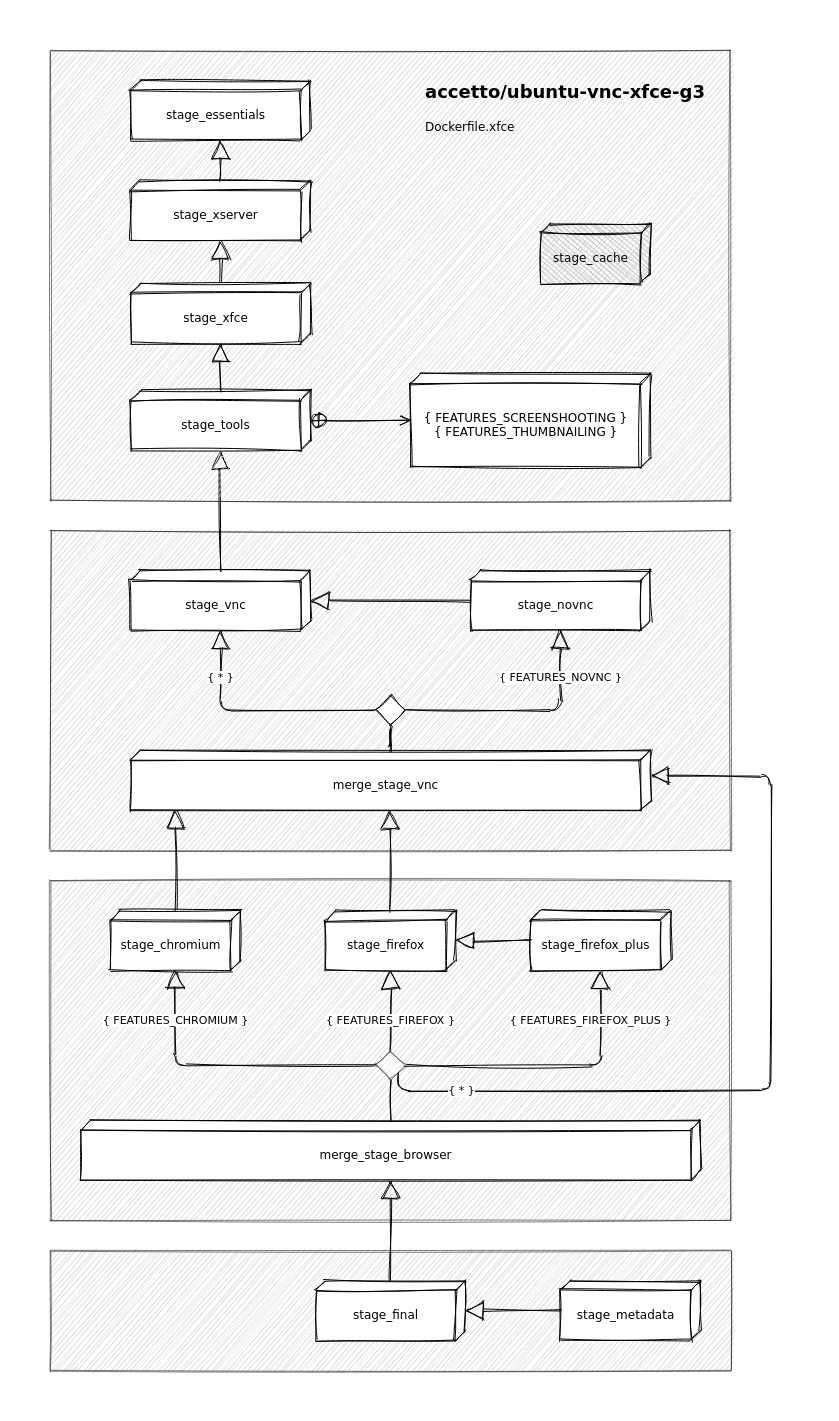
Diagrams
The stage diagram doesn't differ from the sibling project.
Dockerfile.xfce